How to Change Font and Text Size inside PDF File Directly
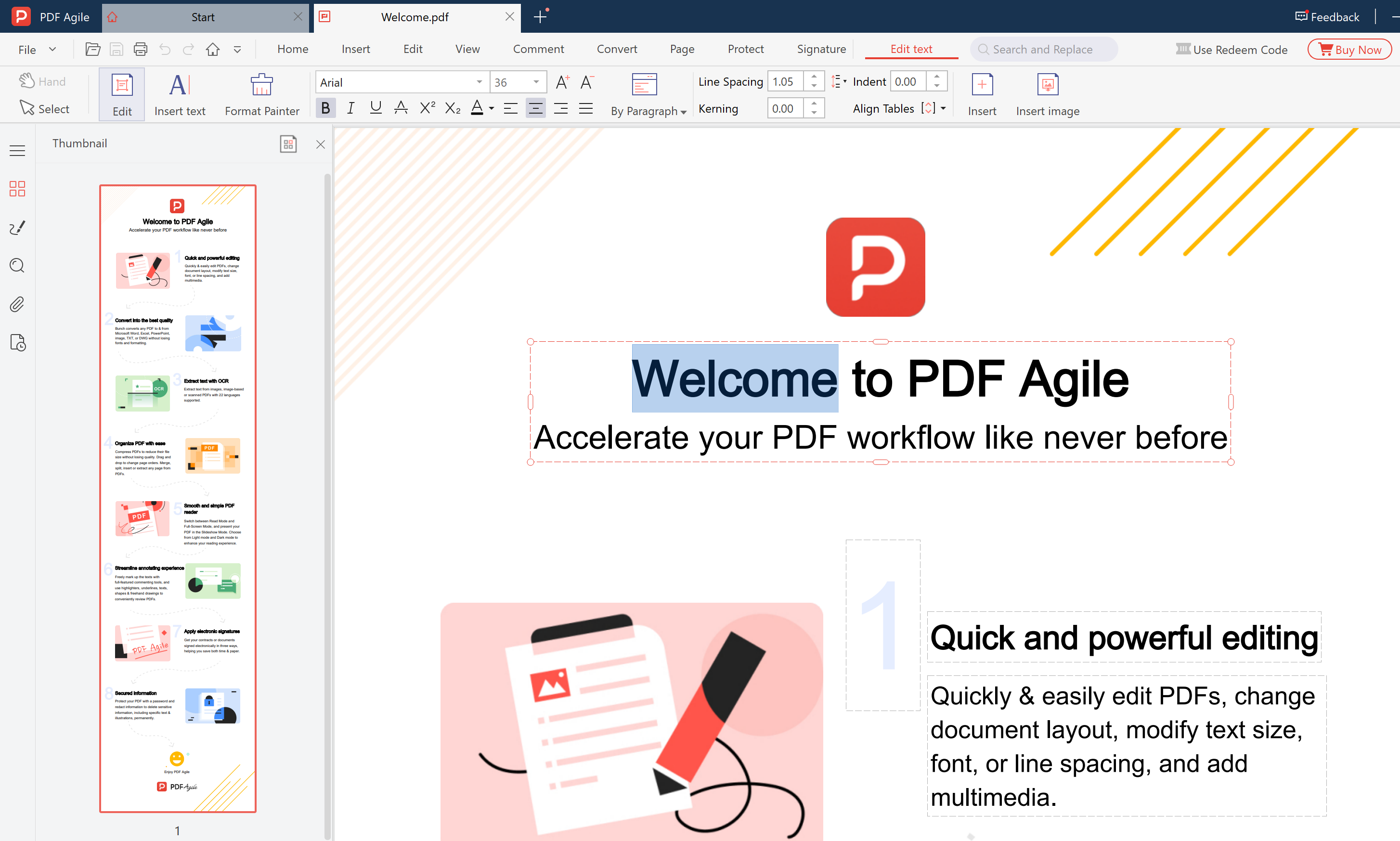
Need to change the font in a PDF but don't have the source document? PDF Agile lets you modify font family, size, color, bold, italic — all directly inside the PDF, without converting to Word first.
Step 1: Select the Text You Want to Change
Open your PDF in PDF Agile, switch to Edit mode, and click on the text block. Highlight the specific text you want to reformat.
Step 2: Open the Font Properties Panel
With text selected, the properties panel appears. Choose a new font family, adjust the size, toggle bold/italic, or change the color.
Step 3: Apply and Save
Changes apply in real-time. Press Ctrl+S to save your updated PDF.
Ready to try it yourself?
Download PDF Agile Free TrialTips
Matching original fonts: PDF Agile automatically detects the original font and applies it to new text, keeping your document consistent.
Bulk font changes: Select multiple text blocks at once (hold Ctrl while clicking) and change font properties for all of them simultaneously.