How to Edit Existing Text in PDF Document Without Acrobat
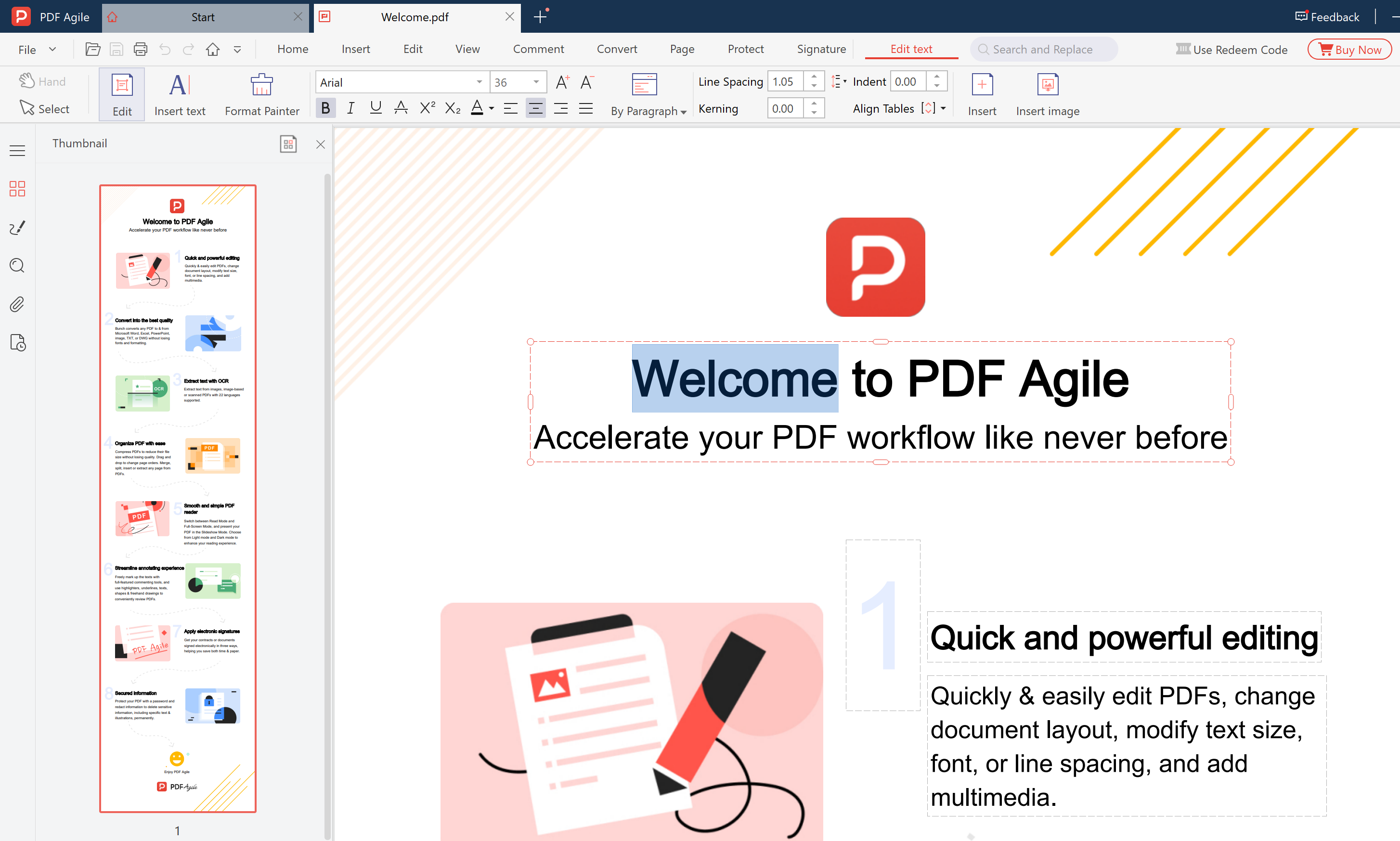
You don't need an expensive Adobe Acrobat subscription just to fix a typo or update a number in a PDF. PDF Agile lets you click any text block and start editing directly — no conversion, no re-upload.
Step 1: Open Your PDF in PDF Agile
Launch PDF Agile and drag-and-drop your PDF file into the window, or use File → Open. The document loads instantly.
Step 2: Switch to Edit Mode
Click the "Edit" tab in the toolbar. All text blocks in the PDF become selectable — click any paragraph, heading, or label to start typing your changes.
Step 3: Save Your Edited PDF
Press Ctrl+S (or Cmd+S on Mac) to save. You can also use File → Save As to create a new version while keeping the original intact.
Ready to try it yourself?
Download PDF Agile Free TrialCommon Questions
Can I edit a scanned PDF? — Yes, if you run OCR first. PDF Agile has a built-in OCR engine that converts scanned images to selectable text.
Will the formatting stay intact? — Small edits to existing text blocks preserve the original layout. Large additions may shift adjacent elements.